
Public Beta Guide
Thank you for testing the Visual Buddy Beta! This guide contains everything you need to set up the app and start mixing visuals in minutes.
Watch Full Features Demo⏱️ 1. Beta Validity (Timebomb)
This Beta version is fully functional but it has an expiration date:
- Start: May 1, 2026.
- End: September 1, 2026.
🛠️ 2. Quick Setup (5 Steps)
1. Video Folder: Open the app, go to the Decks tab, and select the folder where you store your video loops.
Recommended Folder Structure: We recommend organizing your videos into subfolders numbered 1 to 8. The logic behind this is that each folder corresponds to a specific Hotcue Trigger (1-8) in your DJ software.
For example, when you trigger Hotcue 1, Visual Buddy will automatically play a video from folder 1. This allows you to match the visual energy (e.g., folder 1 for intros, folder 2 for drops) to specific parts of your track.
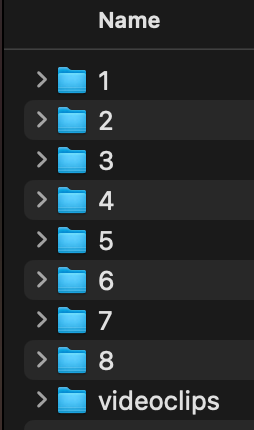
2. Audio Sync: In the Settings tab, select your current audio interface. This allows effects to react to the Master rhythm.
3. DJ Software Setup:
Traktor Pro 4 Synchronization
To Sync Traktor with Visual Buddy you need to install a mod inside Traktor application folder.
- Open Visual Buddy > Settings > INSTALL QML FILES. This will copy the files inside a folder you select, for example your Desktop.
- Go to folder: /Applications/Native Instruments/Traktor Pro 4/
- Right click on "Traktor Pro 4" (or your current version) and select "Show Package Contents".
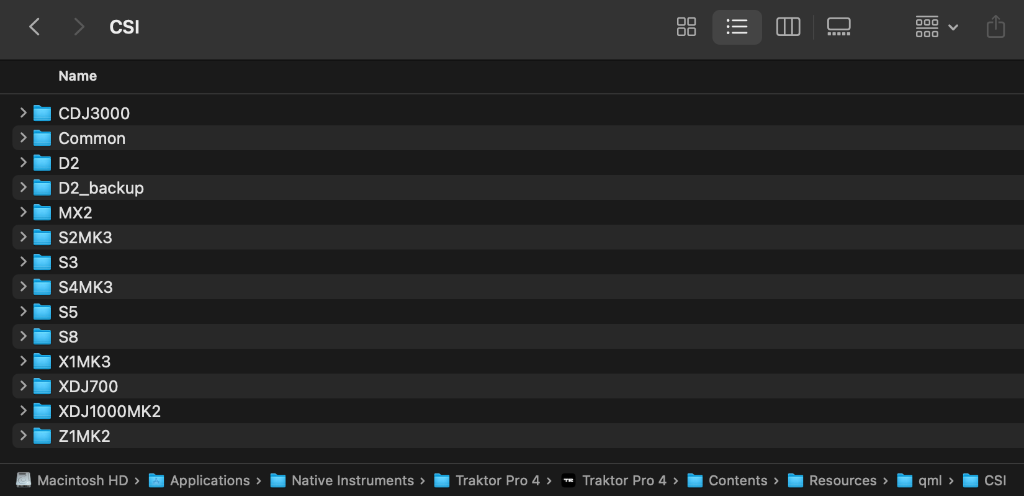
- Go to: /Contents/Resources/qml/CSI/
- Make a backup of the folder
D2you see there (change its name toD2_backup). (macOS will ask for your password) - Now, drag the
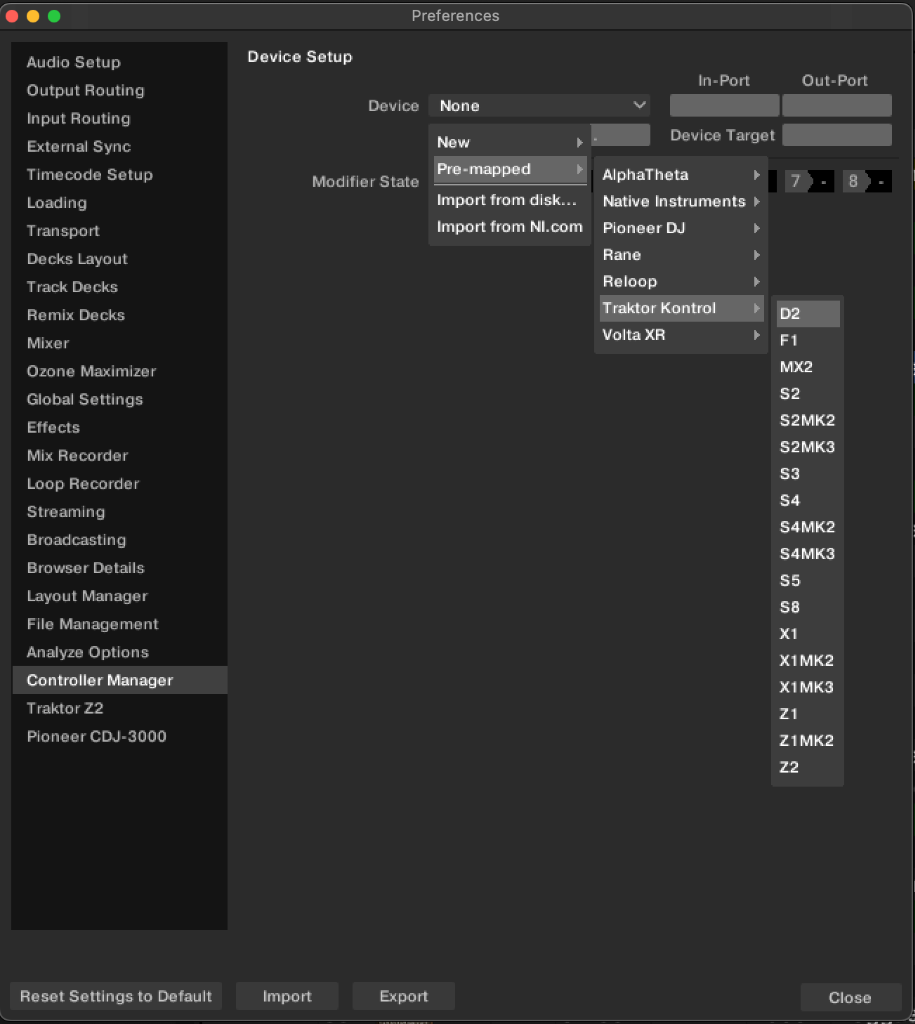
D2folder that we created before on your desktop to this location. (macOS will ask for password again) - Now, open Traktor app, and go to: Settings > Controller Manager > Add... > Pre Mapped > Traktor Kontrol > D2.
4. Video Output: Click the "Main Out" button to open the projection window. You can drag it to your second monitor/projector.
🎁 Bonus: Free VJ Loops
Don't have any loops yet? Check out these amazing artists and sites that offer high-quality VJ loops for free:
- Future Self Beats - High-energy rhythmic loops.
- Mantissa - Geometric and abstract visuals.
- Volumetricks - 100 free loops starter pack.
- Nebmotion - 4K free VJ packs.
- Beeple - The legend. Full packs of creative commons loops.
🐞 3. Bug Reporting & Feedback
Your feedback is vital for the official launch. If you find an error or have a suggestion:
- Email: visualbuddybeta@gmail.com
Logs: If the app crashes or closes unexpectedly, please send us the log file. You can find it on your Mac at this path:
(Tip: You can copy this path, open Finder -> Go -> Go to Folder... and paste it).
Liability Notice: Visual Buddy is provided "AS IS" and is currently in an experimental Beta state. The developers are not responsible for any technical issues, crashes, or failures during live events. Use of this software is at your own risk. The developers shall not be liable for any direct or indirect damages resulting from the use of this application.